/plugins/wordpress
WordPress Checkout Module
The Snap Checkout App is ideal to capture customers at the tail end of their shopping journey when they are ready to check out. Your customers can easily apply, and if approved, directly check out on your website using Snap to pay.
Installation steps
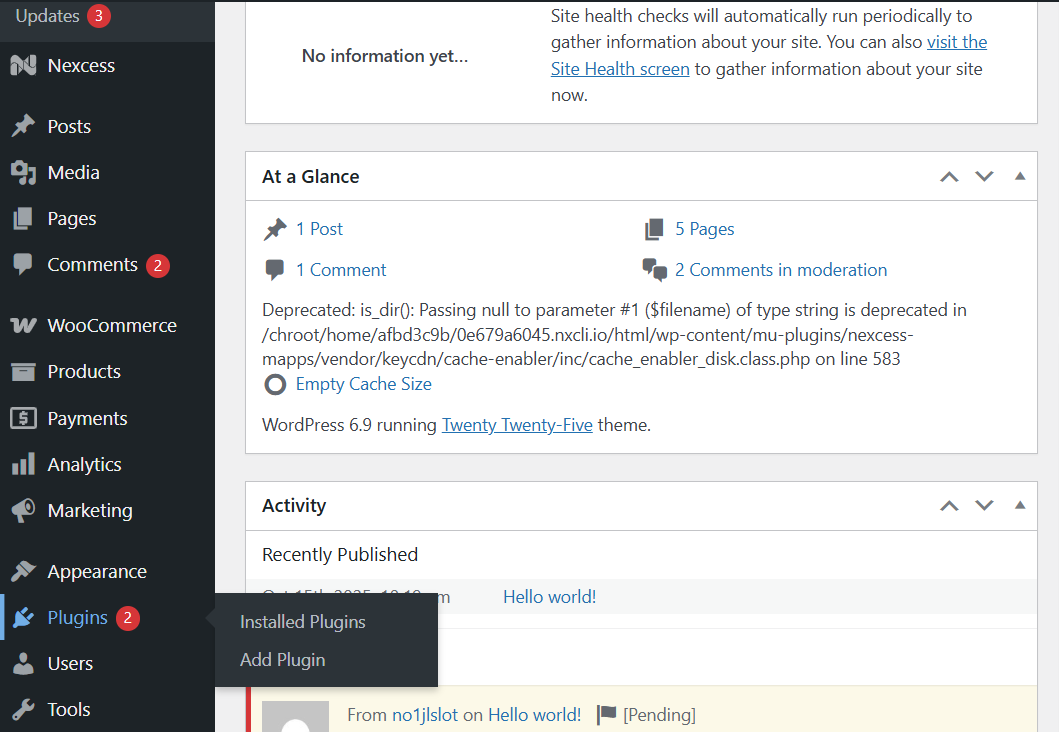
Step 1: Visit WordPress Dashboard
Go to your WordPress Admin Panel. In the left sidebar, click on "Plugins" to expand the menu.
Step 2: Go to Plugins → Add Plugin
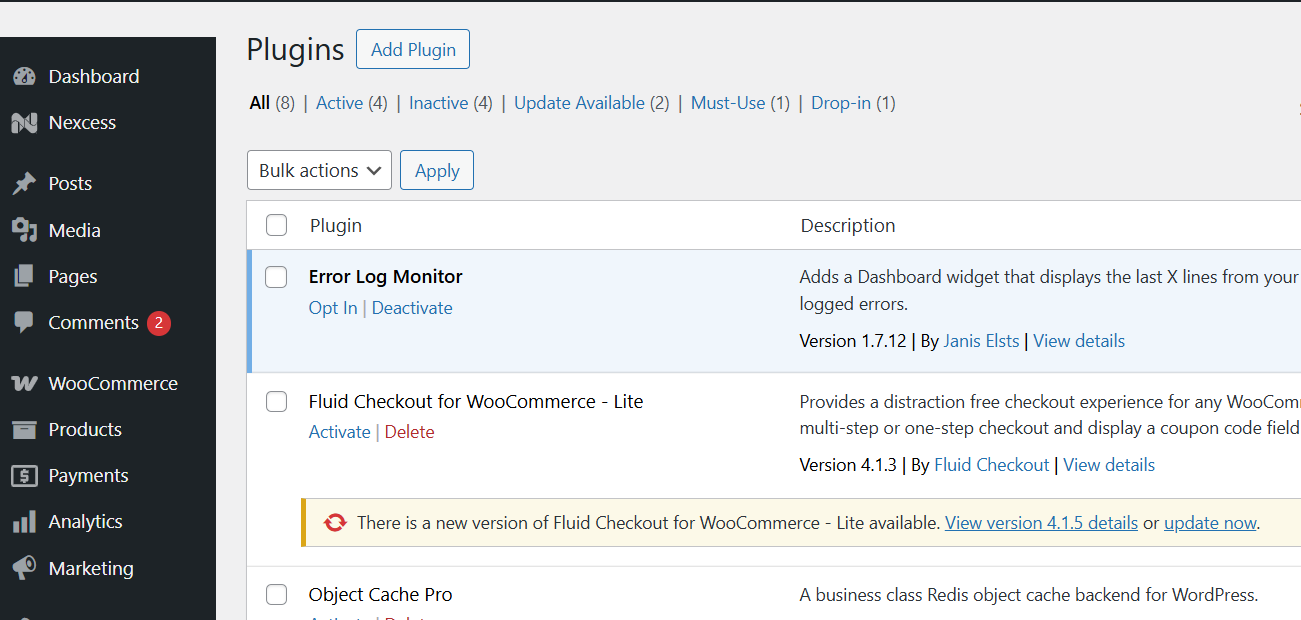
From the Plugins submenu, select "Add Plugin".
Step 3: Search and install the plugin
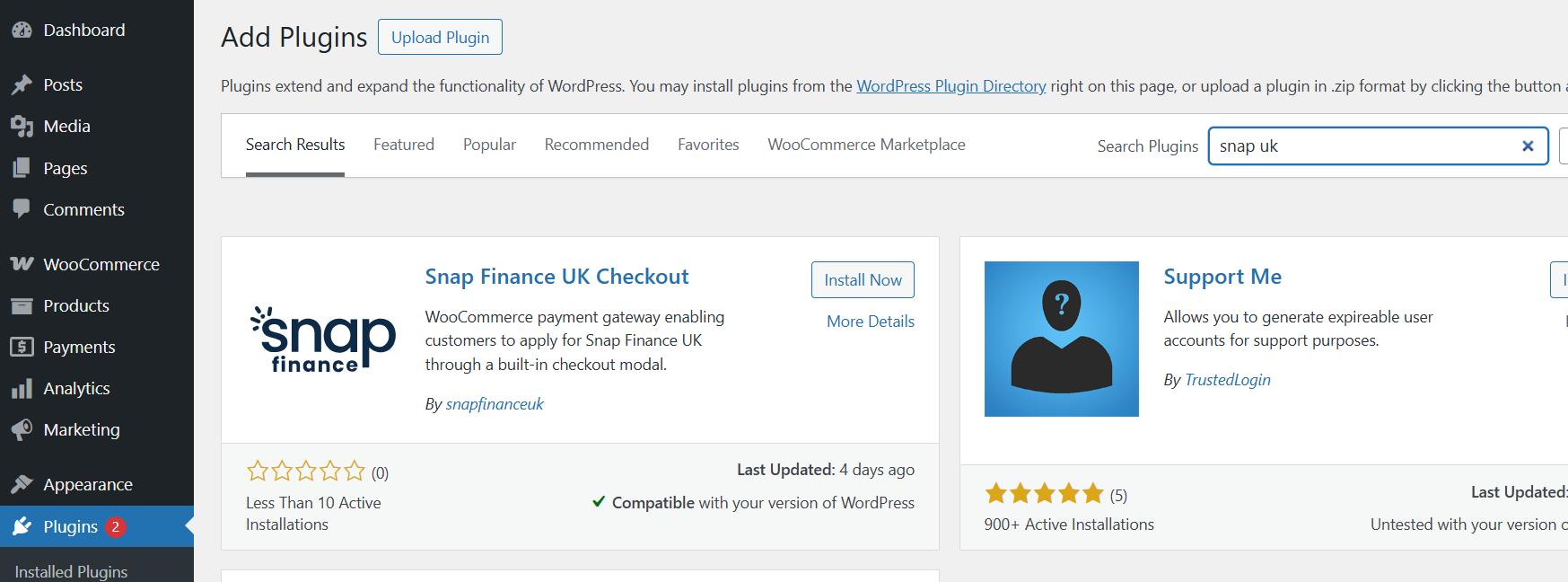
Use the search box on the top right and type the name of the Snap Finance UK plugin. When you find the correct plugin, click the "Install Now" button.
Step 4: Activate the plugin
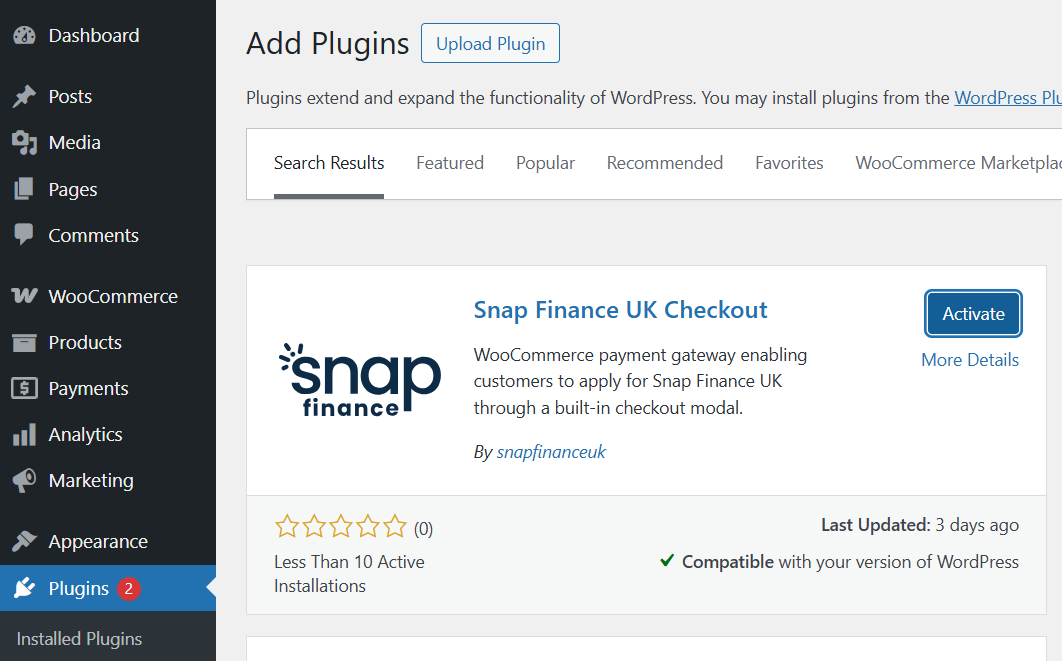
After installation is complete, click "Activate" to enable the plugin on your site.
Step 5: Configuration
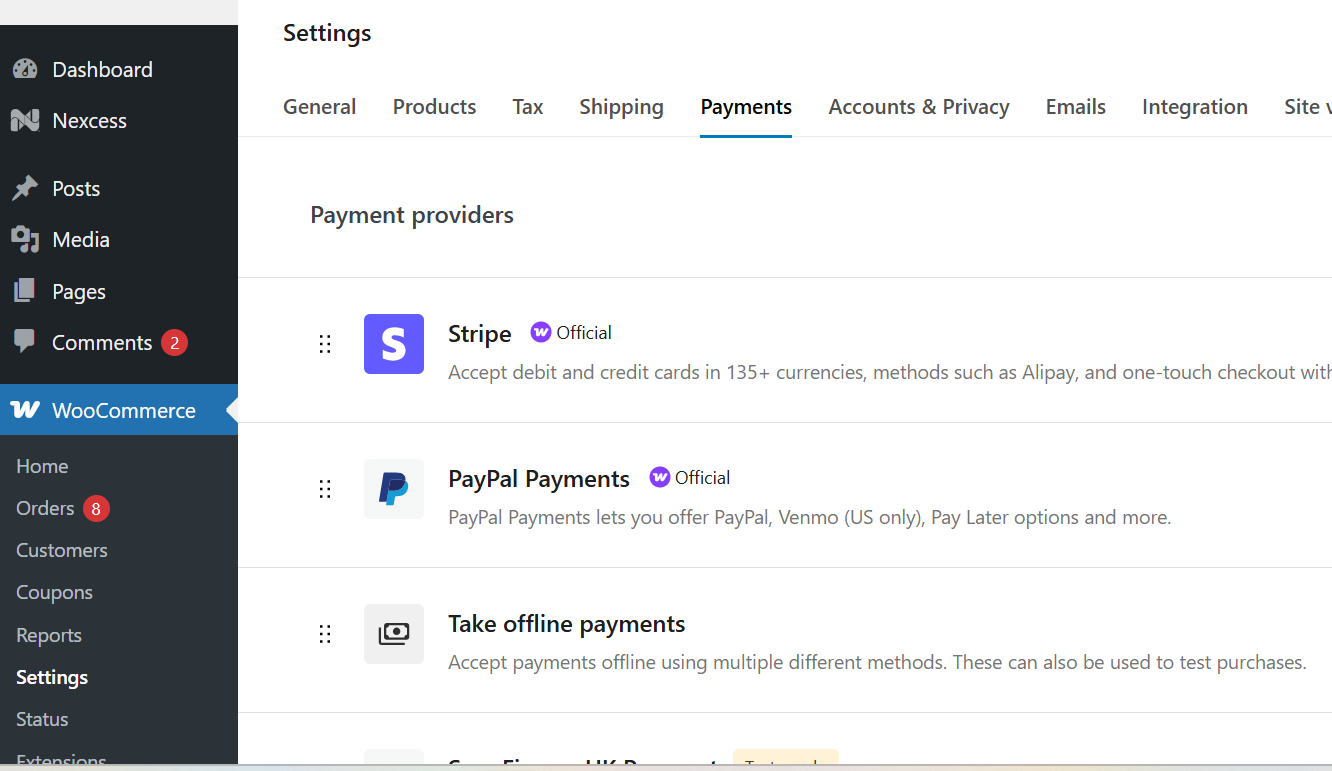
After activating the plugin, go to "WooCommerce → Settings" from the left menu. Open the Payments tab, find "SnapFinanceUK Payment", and click "Manage" to access the plugin settings.
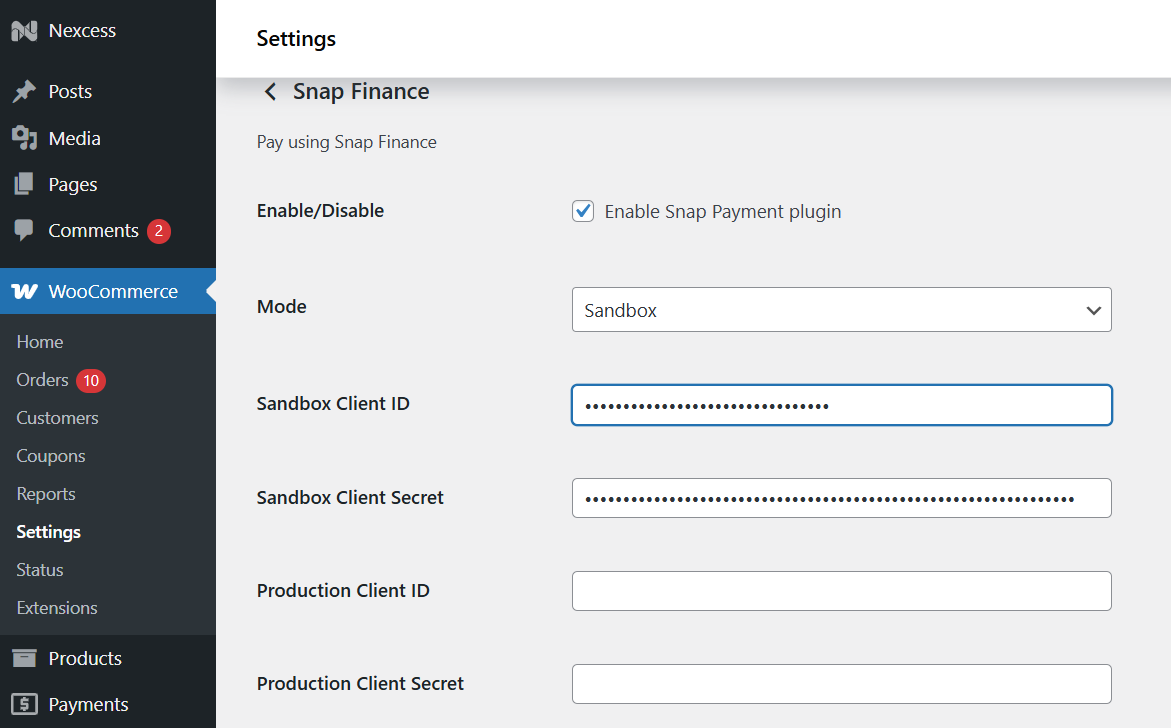
The Merchant ID, Client ID and Client Secret Key for both sandbox and production will be provided by Snap Finance UK as part of the retailer onboarding process.
Please ensure that the plugin is Enabled and that the "Mode" is set to "Sandbox" to test it before going live.
Once you have filled in these fields, scroll to the bottom of the page and click "Save changes".
Step 6: Testing
The installation has been completed! 🎉
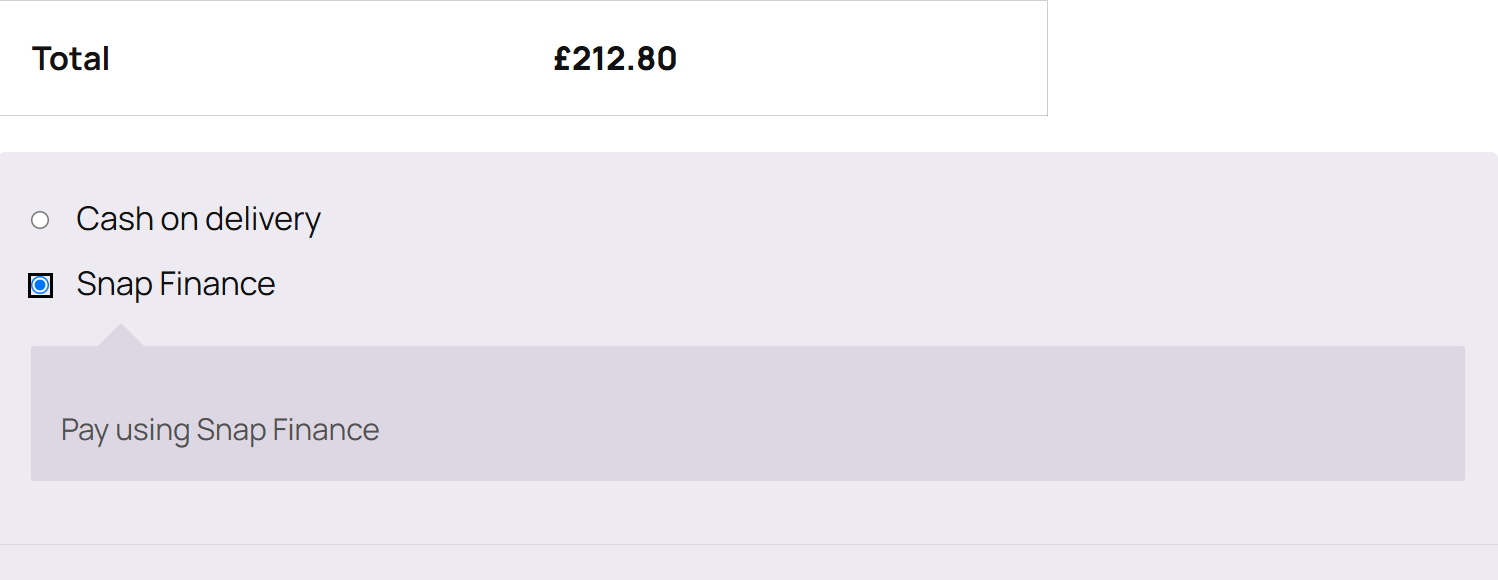
To verify and view the customer experience, initiate the checkout application flow. A new "Snap Finance" payment method will be displayed.
Step 7: Verification
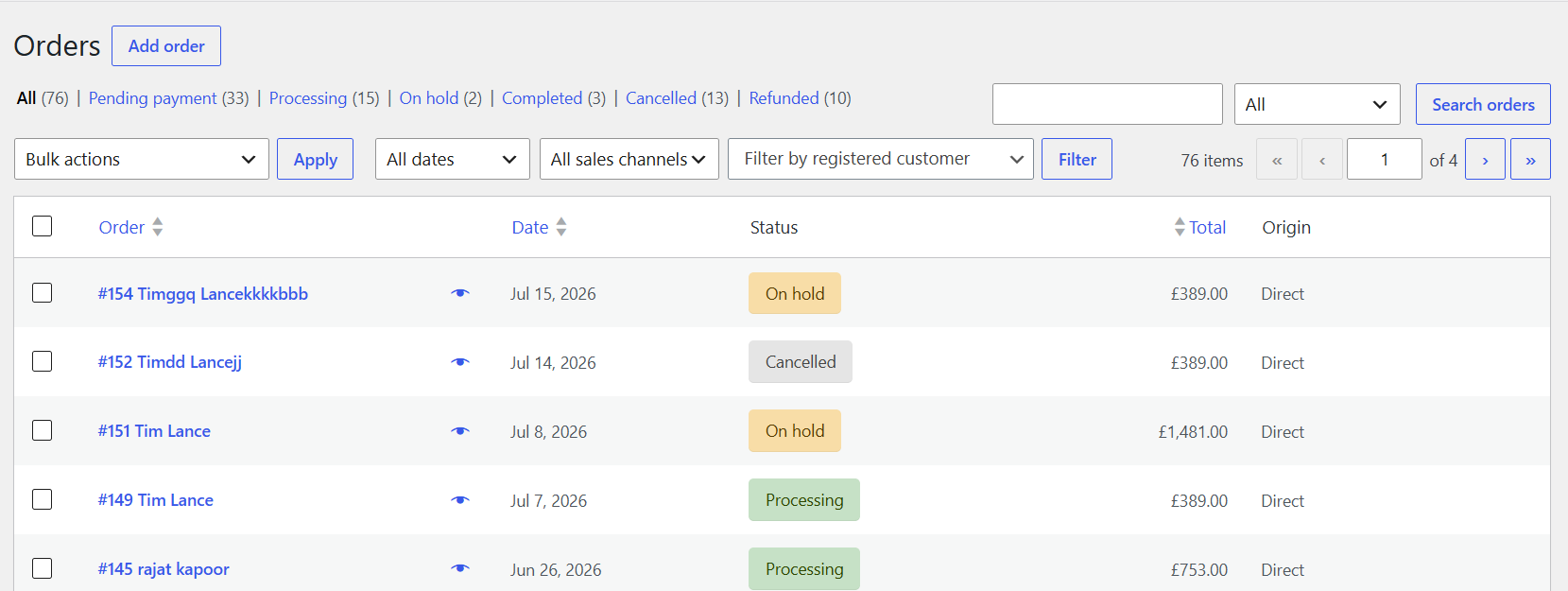
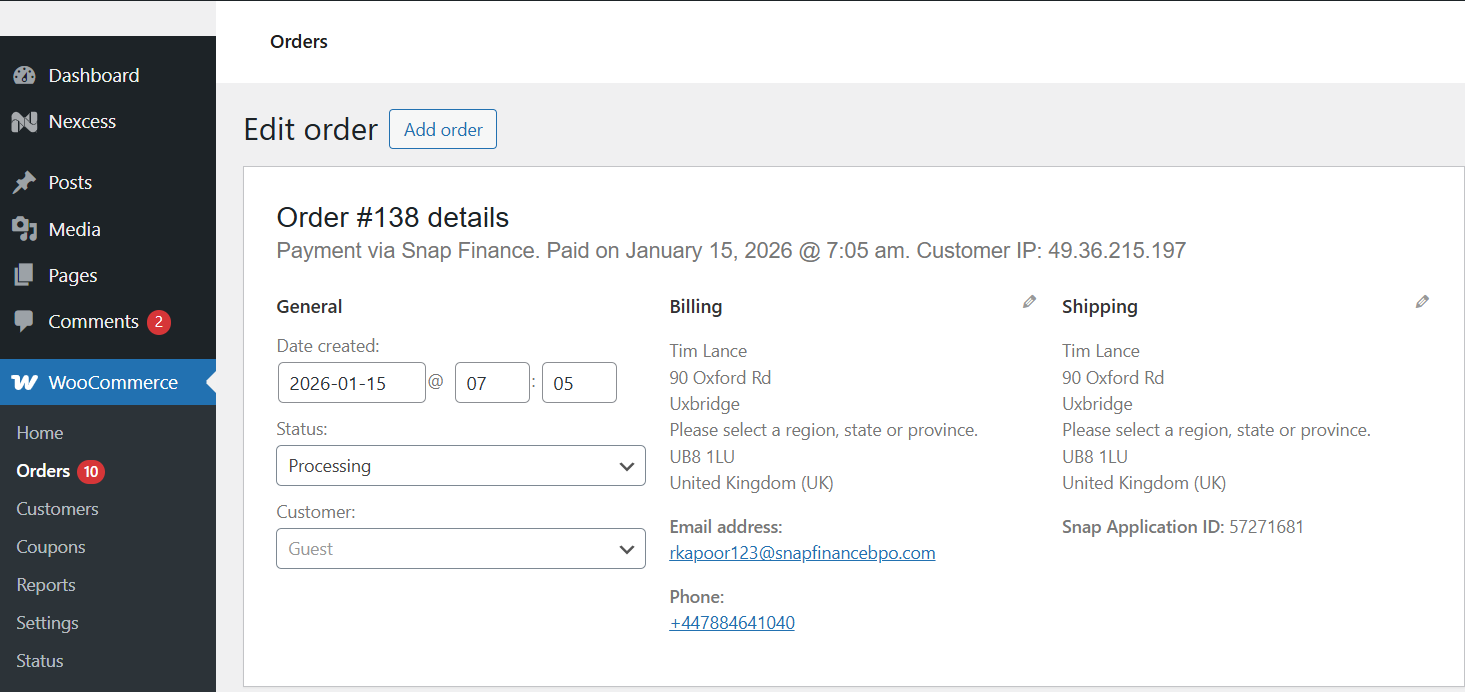
After the customer completes the checkout process, "the order will be available in your WordPress Admin panel". From the left-hand menu, go to "WooCommerce → Orders" to view all customer orders. Click an order number to see its full details. On the order page, under the Order details section, you will see the text Payment via Snap Finance, which confirms that the Snap payment method was used.
Order management
After checkout, use the guides below to understand when WooCommerce orders are created, how Snap statuses map to WooCommerce, and what order notes to expect for fulfilment and refunds.
When the order is created in WooCommerce
When the customer selects Snap Finance at checkout, the plugin may create a draft order while they complete the Snap application. Until the Snap flow finishes successfully, that order is not finalised and may show as Checkout draft or Pending payment.
The order is finalised once the customer has finished the Snap application. The plugin then fetches the Snap status and sets the WooCommerce order status automatically — most commonly Processing when Snap reports PENDING_DEL (26 — Pending delivery), or Completed when Snap reports COMPLETE (30).
After delivery, set the order to Completed in WooCommerce Admin if it is not already — this notifies Snap of the delivery date.
Order status mapping (Snap → WooCommerce)
When checkout completes, the plugin maps each Snap
progressStatus code to a WooCommerce order status and adds a matching private order note.In WooCommerce Admin, the status slug
pending is displayed as Pending payment.The most common outcome after a successful checkout is Processing (Snap PENDING_DEL / 26) or Completed (Snap COMPLETE / 30).
| Snap code | Snap status | WooCommerce status | Private order note |
|---|---|---|---|
| 2 | Application started | Pending payment | Snap Finance: Application Started |
| 6 | Approved | Pending payment | Snap Finance: Approved |
| 10 | Approved with conditions | Pending payment | Snap Finance: Approved with Conditions |
| 14 | Denied | Failed | Snap Finance: Denied |
| 18 | Withdrawn | Cancelled | Snap Finance: Withdrawn |
| 22 | Pending documents | Pending payment | Snap Finance: Pending Documents |
| 26 | Pending delivery | Processing | Snap Finance: Pending Delivery |
| 30 | Complete | Completed | Snap Finance: Completed |
| 0 | Funded | Processing | Snap Finance: Funded |
| -1 | Error | Failed | Snap Finance: Error |
Order notes — fulfilment and refunds
The plugin adds private order notes (staff-only; not visible to customers) at key points in the order lifecycle.
At checkout — when Snap assigns an Application ID
A note such as Snap Finance: Application ID assigned: {id} is added when the customer receives an Application ID during the Snap flow.
When checkout completes successfully
A status note is added matching the Snap status — for example Snap Finance: Pending Delivery or Snap Finance: Completed (see the status mapping table above).
On fulfilment — when the order status is Completed
Set the WooCommerce order status to Completed after delivery. The plugin notifies Snap when Snap status is PENDING_DEL (26) or COMPLETE (30).
| Order note | Meaning |
|---|---|
Snap Finance: Delivery date sent to Snap. (+ status label) | Delivery date was successfully sent to Snap. |
Snap Finance: Pending delivery notification failed (network). | Fulfilment API call failed — delivery date may not have reached Snap. |
Snap Finance: Pending delivery notification rejected (HTTP XXX). | Snap rejected the fulfilment request. |
On refund — when a refund is processed
Process refunds through the standard WooCommerce refund screen. A refund is only saved if the Snap API call succeeds. Refunds are allowed when Snap status is PENDING_DEL (26) or COMPLETE (30).
| Order note | Meaning |
|---|---|
Snap Finance: Refund submitted to Snap successfully. Amount: ... | Refund was accepted by Snap. |
Snap Finance: Snap application ID is missing on this order. | Cannot refund — no Application ID is stored on the order. |
Snap Finance: Could not verify Snap application status. Refund not sent to Snap. | Status API failed — refund was blocked before reaching Snap. |
Snap Finance: Snap refund is only allowed when application status is Pending Delivery (26) or Complete (30). Current status: ... | Application is not in a refundable state. |
Snap Finance: Could not obtain OAuth token for Snap refund. | Plugin could not authenticate with Snap. |
Snap Finance: Refund request failed (network). | Network issue — refund was not sent to Snap. |
Snap Finance: Refund request rejected. HTTP XXX — ... | Snap API rejected the refund. |
Snap Finance: Refund response was not accepted as successful... | Snap returned HTTP OK but success criteria were not met. |
Checkout errors
| Order note | Meaning |
|---|---|
Snap Finance: Could not fetch status from API. | Snap status could not be retrieved at checkout. |
Snap Finance: Order completed without application ID... | Checkout finished but no Application ID was received. |
Snap Finance: Unknown status (X) | Snap returned a status code the plugin does not recognise. |
Where to find Snap information on an order
The Snap Application ID is shown below the shipping address on the order detail screen in WooCommerce Admin.
Private order notes appear in the order notes panel on the same screen.
Product Widgets
The Snap Finance UK plugin can display finance widgets on WooCommerce single product pages. Configure them under the plugin payment settings — no custom theme code is required.
Open plugin settings
Go to "WooCommerce → Settings → Payments", find "SnapFinanceUK Payment", and click "Manage".
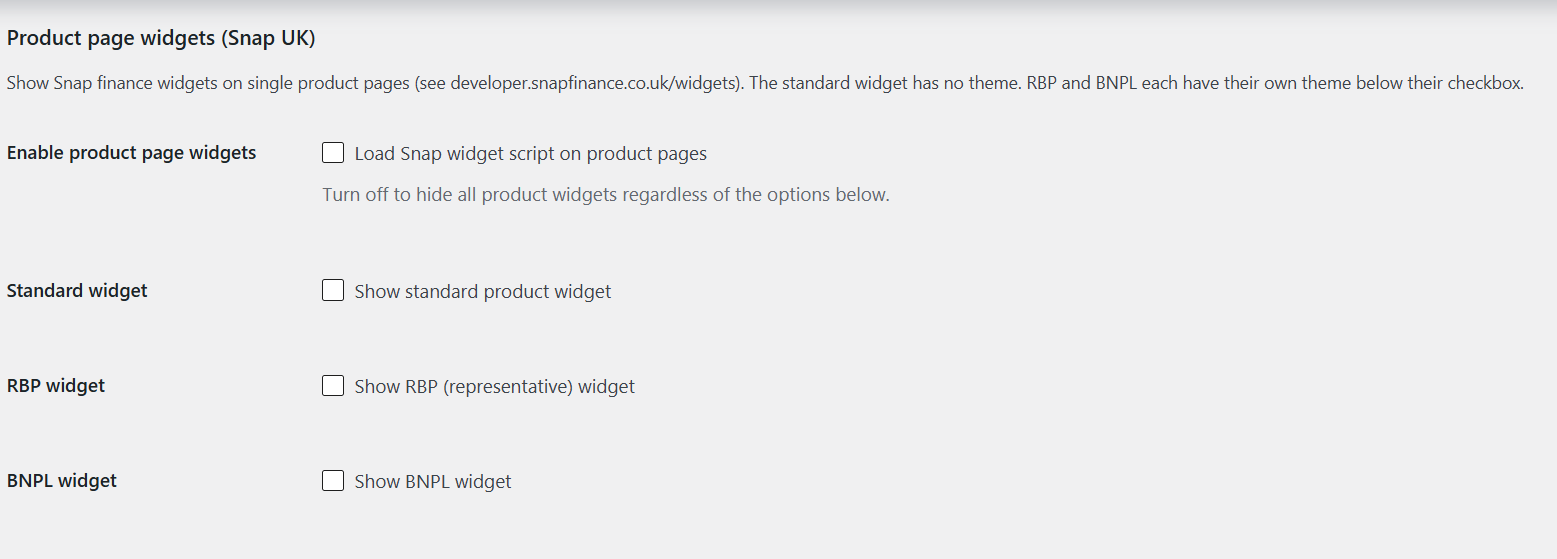
Scroll to the "Product page widgets (Snap UK)" section.
Enable product page widgets
Turn on "Enable product page widgets" to load the Snap widget script on single product pages.
If this option is off, no product widgets will display, even if the individual widget types below are selected.
Choose widget types
Select one or more widget types to show near the product price:
Standard widget — shows the standard Snap finance message (no theme option).
RBP widget — shows the representative example (RBP) widget. When enabled, choose a theme of Dark or Light.
BNPL widget — shows the Buy Now Pay Later widget. When enabled, choose a theme of Dark or Light.
Save and verify
Click "Save changes" at the bottom of the settings page.
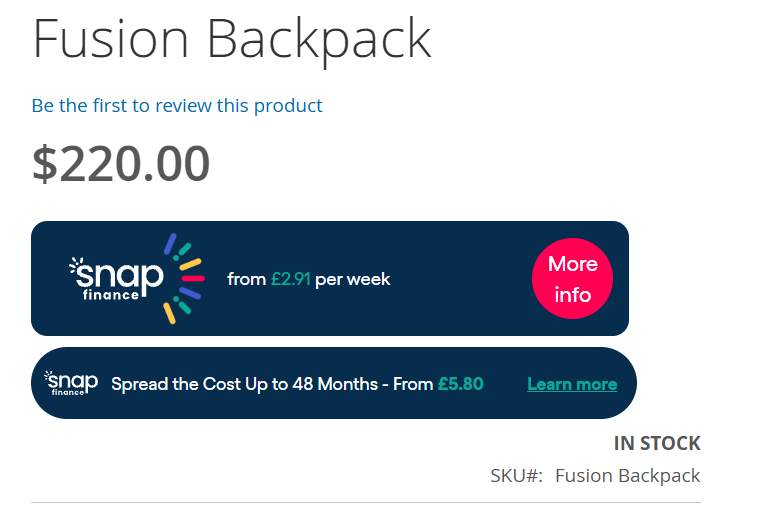
Open any WooCommerce single product page on the storefront. The selected Snap widgets should appear near the product price.
For more detail on widget behaviour and theming, see the SDK Widgets documentation.
Widget on the product page
Once enabled, the selected widgets appear on the Magento product page near the price, as shown on the right.
Additional information
The Snap Merchant Portal
The Snap Merchant Portal is where you view and manage all of your Snap Finance applications and orders. It is the ultimate source of truth for the status of every application.
Access details for the Merchant Portal will be provided during your onboarding and training. If you need access, or have lost your login details, contact your Snap Finance account manager.
Need help?
For any queries please contact your Snap Finance account manager.