/sandbox
Sandbox testing guide
This guide explains how to switch your integration to the Snap Finance UK sandbox environment and test the full application journey before going live. It applies across our checkout plugins and SDK integrations.
The sandbox uses the same decisioning engine as production, so the journeys you see while testing match the live experience.
Before you begin
Before you begin, you should have your sandbox credentials:
- Client ID
- Merchant ID
- Secret (not needed for an SDK integration)
If you do not have these, please contact your Snap Finance account manager.
Testing steps
Overview
To test the Snap Finance application journey on your store or website, use our sandbox environment.
Testing involves two stages:
• Switching your integration to the sandbox environment.
• Completing test applications using decisioning controls.
Switching to the sandbox
How you switch to the sandbox depends on how Snap Finance is integrated with your store or website.
Shopify
• In your Shopify admin, go to Settings → Payments.
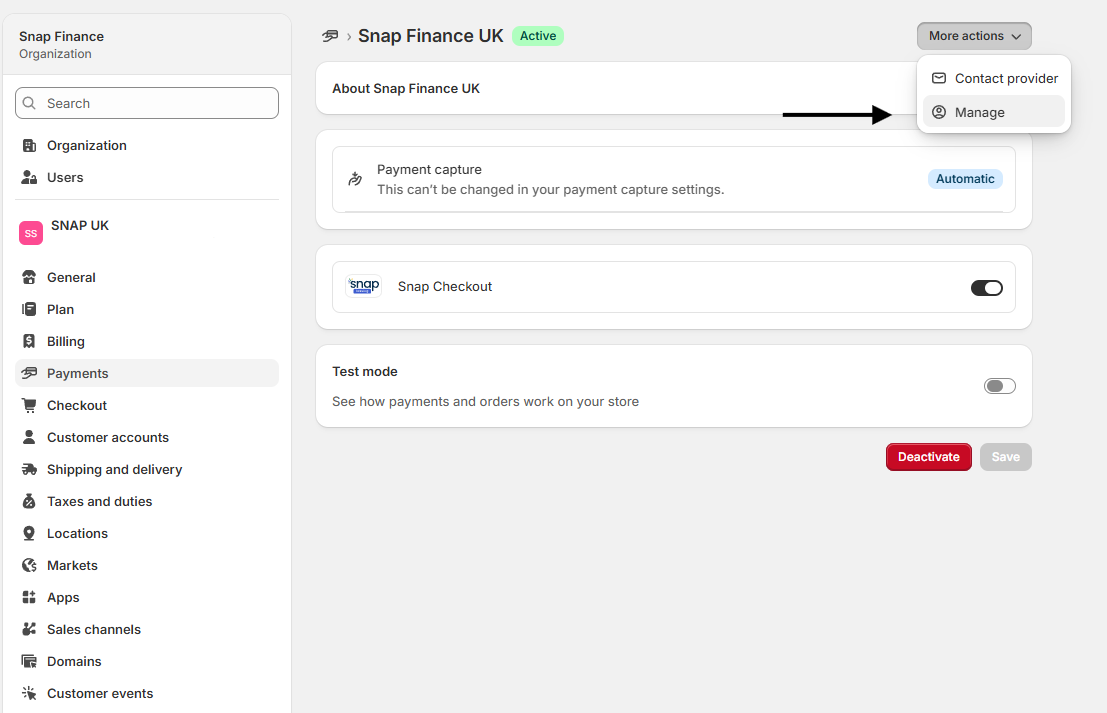
• Locate Snap Finance UK, then select More actions → Manage to open the plugin's configuration screen.
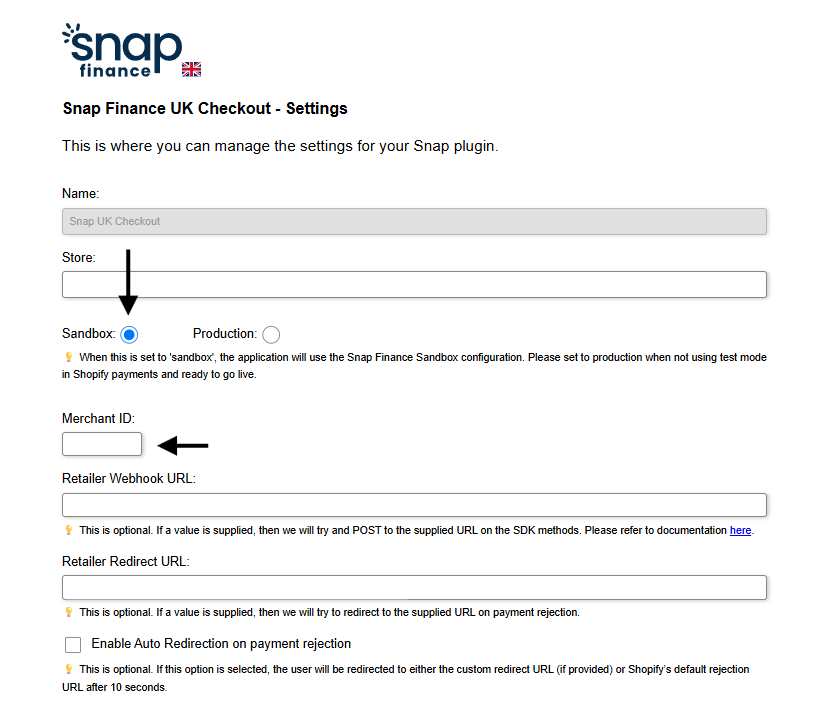
• Replace the Merchant ID with your sandbox Merchant ID.
• Set the Sandbox / Production toggle to Sandbox.
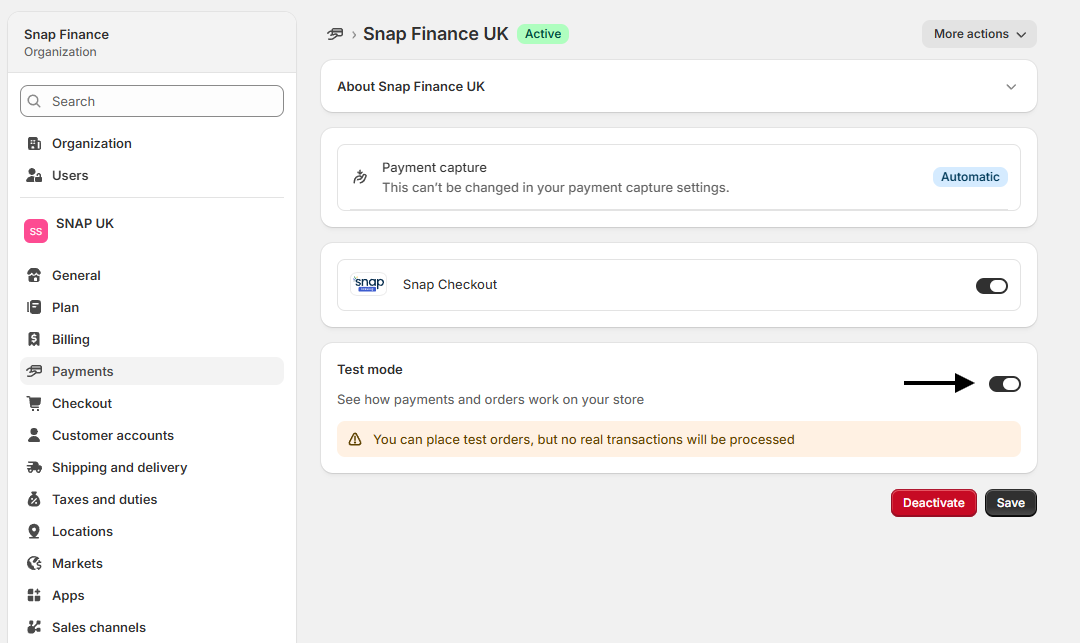
• Return to the plugin's Shopify settings and enable Test mode.
You are now ready to test.
SDK
• Replace our standard import script with the sandbox version.
• Swap your production credentials for your sandbox credentials when initialising the SDK or checkout button.
• Pass the Client ID as a string and the Merchant ID as an integer.
Magento
• In your Magento Admin Panel, open the Snap Finance UK plugin settings.
• Enter your sandbox Merchant ID, Client ID and Client Secret Key, then set Mode to Sandbox and save.
For the full walkthrough, see the Configuration steps in our Magento plugin documentation.
WordPress / WooCommerce
• In your WordPress dashboard, go to WooCommerce → Settings → Payments, find SnapFinanceUK Payment and select Manage.
• Enter your sandbox Merchant ID, Client ID and Client Secret Key, then set Mode to Sandbox and save.
For the full walkthrough, see the Configuration steps in our WordPress plugin documentation.
Testing your integration
The sandbox and production environments share the same decisioning engine, so what you see while testing reflects the live journey experience.
Begin by navigating to your store, adding items to your cart, and selecting Snap Finance at checkout.
Use different customer details for each test
Duplicate applications are automatically declined, so use different customer details for each test application. Use dummy details, and change the following fields every time:
• Last name
• Email address
All other fields can stay the same between applications.
You will need to use a mobile number you can access, as a one-time passcode (OTP) is sent to it at the beginning of the application journey. You can use the same mobile number for every application.
Forcing a decision
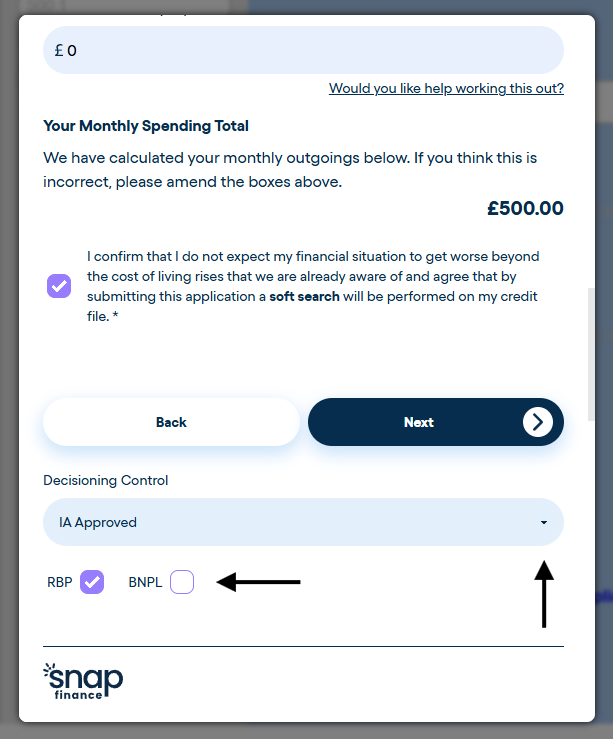
On the Income and outgoings screen of the application journey, you will find a Decisioning control section at the bottom of the page.
• To force the approval journey, select IA Approved from the drop-down menu, then tick the RBP and/or BNPL checkboxes. At least one must be selected.
• Only tick BNPL if 0% finance is part of your agreement and you want to see how it appears in the offers part of the journey. Otherwise, use RBP.
• To view any other journey in full, select a different decision from the drop-down menu.
Deposits and payments
While testing, use the test details below to get through the deposit and payment screens.
| Field | Value |
|---|---|
| Bank account number | 11111111 |
| Sort code | 11-11-11 |
| Name on card | test |
| Card number | 4111 1111 1111 1111 |
| Expiry date | 12/30 |
| Security code | 111 |
Viewing your test orders
Orders created in the sandbox appear in your own CMS or store admin, exactly as a live order would, and in our Sandbox Merchant Portal.
The Sandbox Merchant Portal is a separate environment from the Production Merchant Portal and requires its own login. If you would like to view your test orders there and do not already have a sandbox user, please let your Snap Finance account manager know and we will set one up for you.
Additional Information
Card payment issues
The issue we see most often during testing is being unable to proceed past the card payment screen when paying a deposit. If this happens, the domain you are testing on may need to be whitelisted.
Send your Snap Finance account manager the domains you are testing from (for example your staging site and any preview or development URLs) and we will whitelist them for you.
Need help?
For any queries, please contact your Snap Finance account manager.