>sdks>widgets
Product widgets
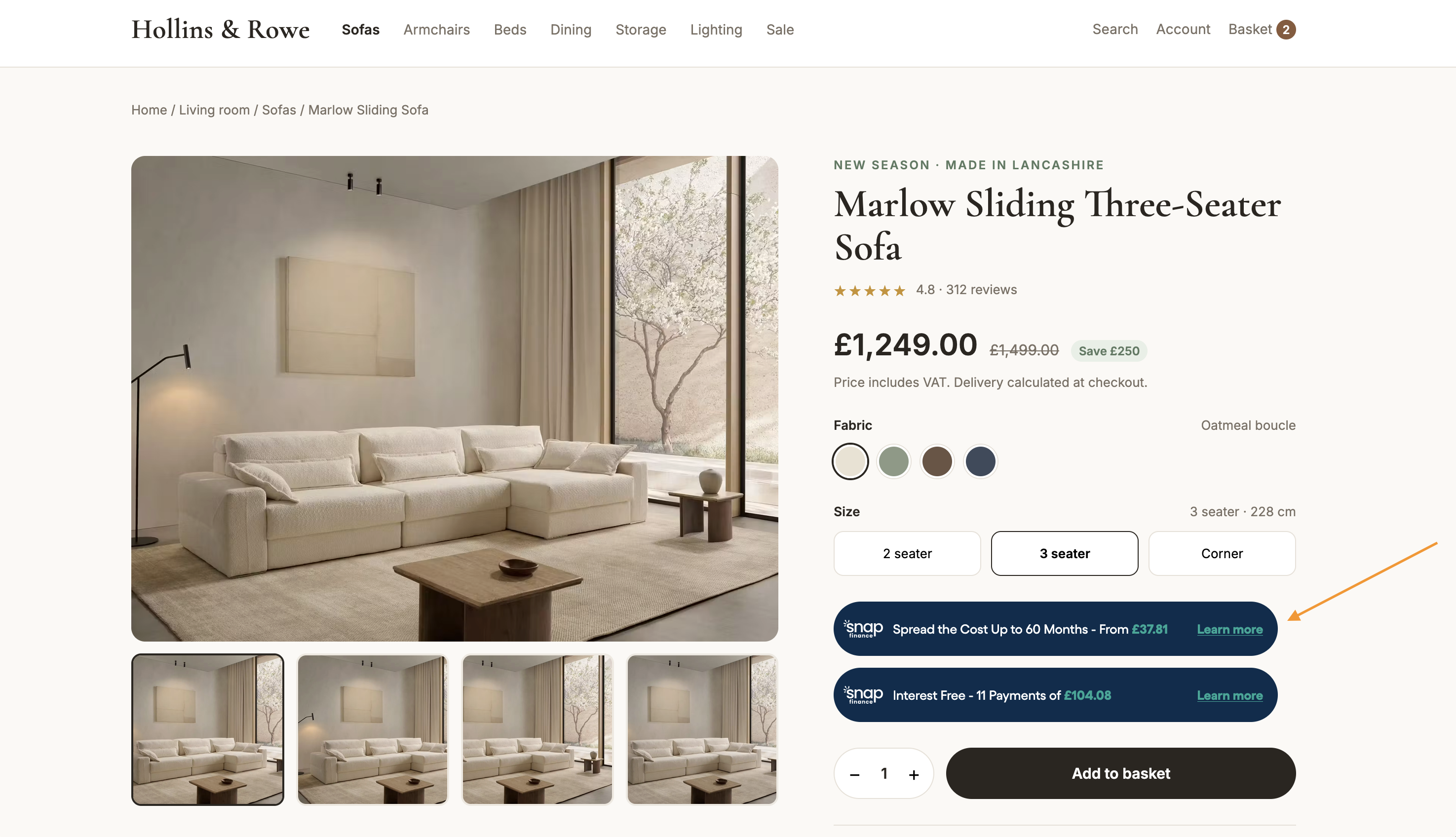
Product widgets sit on your product pages, next to the price, and show customers how much they could repay with Snap Finance before they reach checkout. Customers can click the widget to see the full repayment breakdown.
Choose
Pick your widget
Which widget you add depends on the finance in your agreement with Snap. Start with Spread the cost (RBP), and add Interest free (BNPL) as well if 0% finance is part of your agreement.
Spread the costRBP
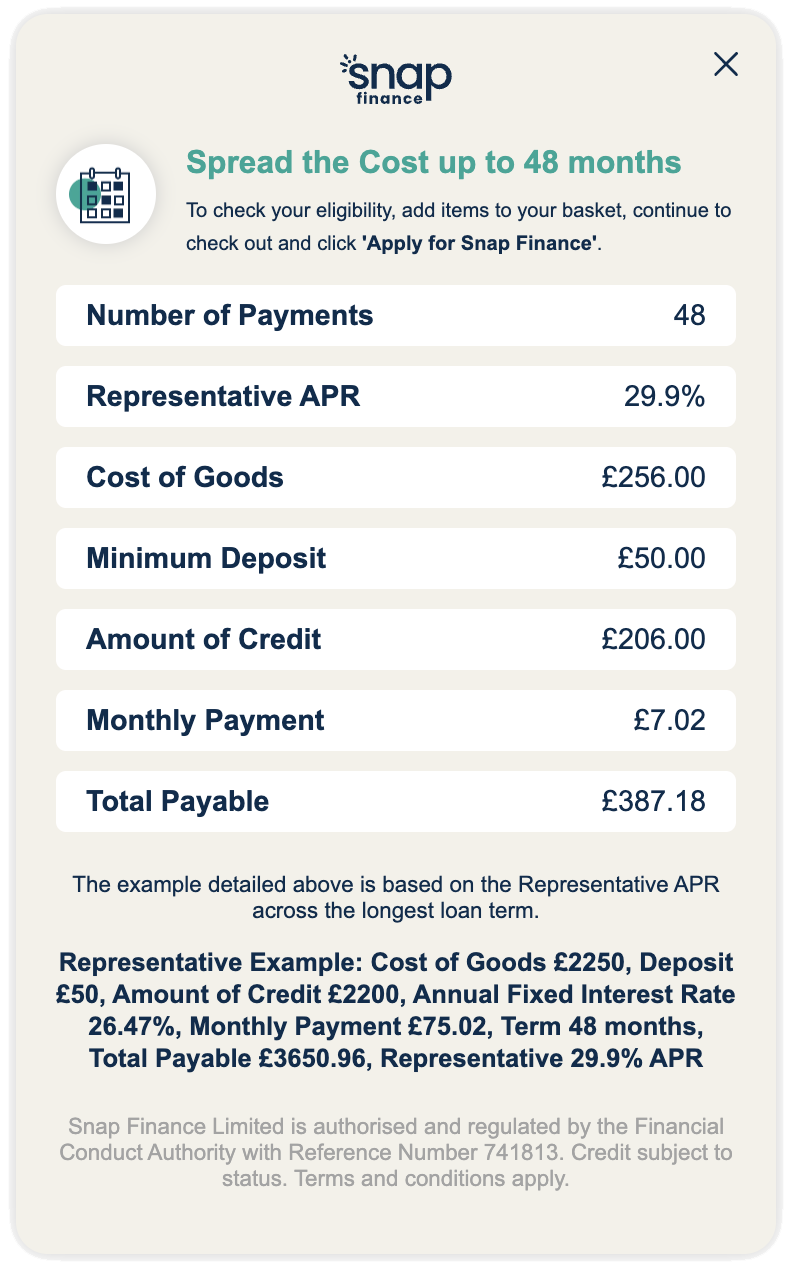
Shows the customer what they would repay each month if they spread the cost over up to 48 months, with interest. It is called risk based pricing because the interest rate each customer is offered depends on their application.
When to use it
Every Snap retailer can use this widget, so it is the one to start with.
What the customer sees
- A banner under the price, e.g. "Spread the cost up to 48 months - from £7.02"
- A pop-up with a representative example: APR, deposit, monthly payment and total payable
<div id="snap-uk-widgets-product-rbp"></div>

<script>
  snapuk.init(clientId);
  snapuk.widgets.productRBP({ merchantId: 1067, costOfGoods: 234.52 });
</script>
Guide
Implementation
Load the SDK and add the widgets to your product page.
Step 01 Import SDK Script
<head> section of your website, using the code snippet below. The script should load before your document body loads.https://sdk.snapfinance.co.uk/v1/snapuk.min.js<head>
<!-- On production replace url with: https://sdk.snapfinance.co.uk/v1/snapuk.min.js -->
<script src="https://sandbox-sdk.snapfinance.co.uk/v1/snapuk.min.js"></script>
</head>Step 02 Add a placeholder to your product page
<div> to your product page template where you want each widget to appear, usually just below the price. The SDK renders the widget inside it, so the id must match exactly.snap-uk-widgets-product-rbpsnap-uk-widgets-product-bnpl, only if 0% finance is part of your agreement with Snap.<!-- Spread the cost (Risk Based Pricing) -->
<div id="snap-uk-widgets-product-rbp"></div>
<!-- Interest free (Buy Now Pay Later), only with 0% finance in your agreement -->
<div id="snap-uk-widgets-product-bnpl"></div>Step 03 Load the widgets
<script> tag. Pass your merchant ID and the product price in pounds as costOfGoods; the widget works out the repayments from it.init method only needs to be called once, so if you are also using the SDK for the Checkout button, you don't need to add it again.<script>
snapuk.init(clientId);
// Spread the cost (RBP)
snapuk.widgets.productRBP({ merchantId: 1067, costOfGoods: 234.52 });
// Interest free (BNPL)
snapuk.widgets.productBNPL({ merchantId: 1067, costOfGoods: 234.52 });
</script>Customise
Theming
Choose between the dark and light widget themes.
The Spread the cost (RBP) and Interest free (BNPL) widgets come in two themes: DARK, the default, and LIGHT for light page backgrounds.
To use the light theme, set the theme property to LIGHT. You can compare both themes in the widget picker above.
<script>
  // Spread the cost (RBP), light theme
  snapuk.widgets.productRBP({
    merchantId: 1234,
    costOfGoods: 234.52,
    theme: "LIGHT"
  });

  // Interest free (BNPL), light theme
  snapuk.widgets.productBNPL({
    merchantId: 1234,
    costOfGoods: 234.52,
    theme: "LIGHT"
  });
</script>